Install IPTV on LG webOS Smart TV: Complete Guide 2026
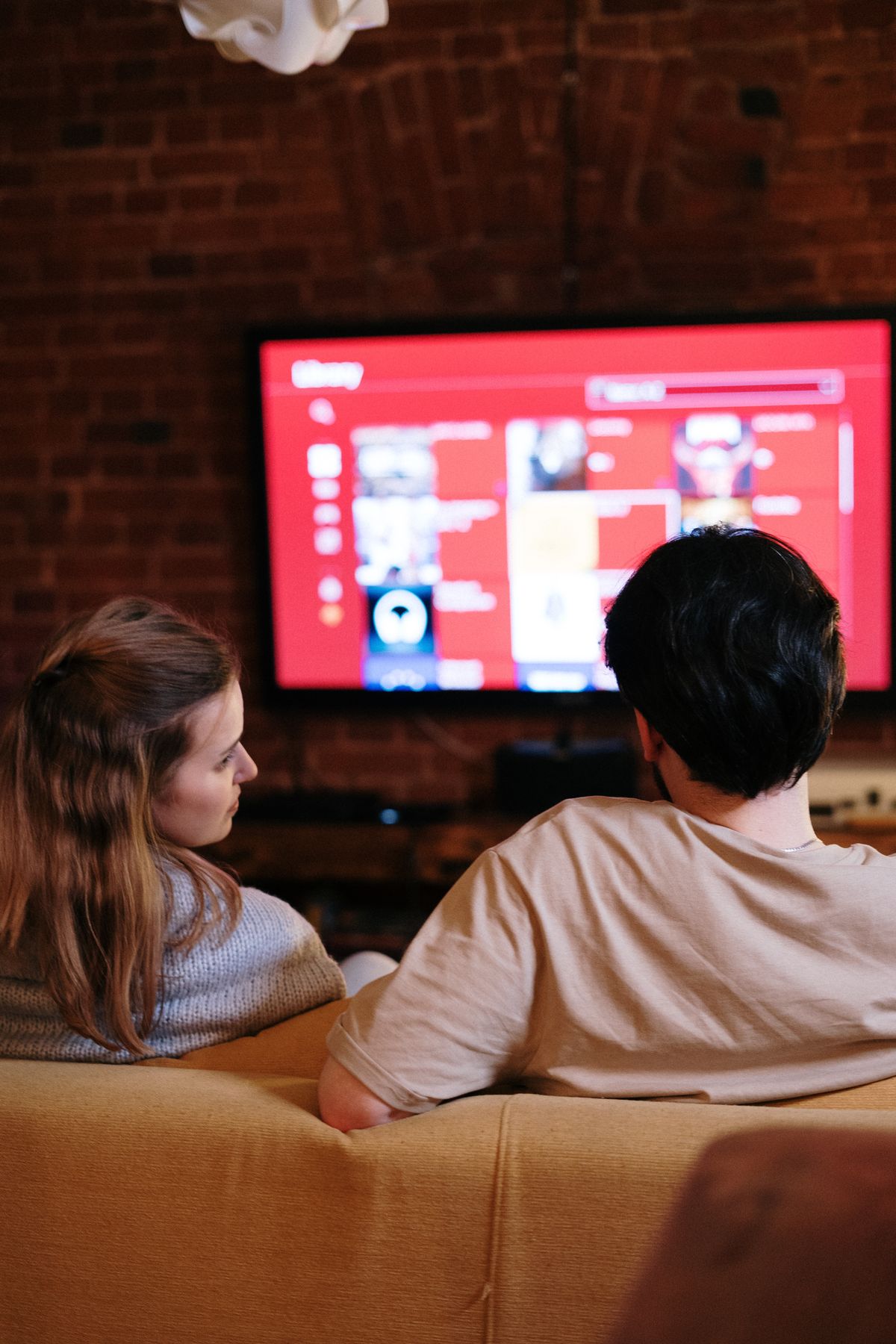
LG Smart TVs equipped with the webOS operating system (see official resources on the LG Developer Portal) are known for their fluid interface and excellent picture quality. Since its introduction in 2015, webOS has evolved significantly, and today the latest versions offer one of the best Smart TV experiences on the market. This guide explains in detail how to install IPTV on your LG Smart TV, whatever your model year.
With approximately 25% of the global TV market, LG is a major player in the television industry. The webOS platform is appreciated for its intuitive interface, its "magic remote" with pointer, and its regular updates. However, like Samsung's Tizen, webOS is a closed system, which limits the choice of IPTV apps available in the LG Content Store. Fortunately, there are several proven methods to successfully install IPTV on your LG TV.
In this comprehensive guide, we cover all available methods, from direct installation through the LG Content Store to more advanced solutions like using an Android box, including tips to bypass regional restrictions. We also address common problems and optimization advice to get the most out of your IPTV experience on your LG Smart TV.
Whether you own an OLED C series, a NanoCell, an Ultra HD or an 8K model, you will find here the solution best suited to your situation. Follow this guide step by step and you will be watching thousands of channels on your LG TV in no time.
LG Smart TVs Compatible with IPTV
Almost all LG Smart TVs produced since 2015 are compatible with IPTV. Here are the main ranges and their specificities:
Compatible Ranges by Year
- OLED Series (C1, C2, C3, C4, G1, G2, G3, G4): all models from 2016 to 2026, perfect compatibility, exceptional image quality for IPTV in 4K HDR with perfect blacks and infinite contrast
- NanoCell Series (NANO75 to NANO99): 2019 to 2026 models, good picture quality with enhanced colour reproduction
- QNED Series (QNED80 to QNED99): Mini-LED technology, excellent brightness and contrast for IPTV in HDR
- Ultra HD Series (UK, UM, UN): entry-level to mid-range models from 2015 to 2020, compatible but with some performance limitations
- 8K Series (Z1, Z2): top-of-the-range models, ideal for IPTV in 8K when content becomes available
Check Your Model's Compatibility
To check if your LG TV is compatible, go to Settings > General > About TV. Note the model number. Models starting with "OLED" (OLED), "NANO" (NanoCell) or "UK/UM/UN" (Ultra HD) are generally compatible. All models with webOS 2.0 or higher (2015+) can install IPTV apps.
Method 1: Installation via LG Content Store (Official Method)
The simplest method is to install an IPTV app directly from the LG Content Store, LG's official app store.
Step 1: Access the LG Content Store
On your LG remote, press the Home button (house icon). Navigate to the LG Content Store icon at the top of the screen. The store interface displays featured apps and categories.
Step 2: Search for an IPTV App
Use the search function (magnifying glass icon) and type "IPTV" or "Smart IPTV". Available apps vary by region. If the search returns no results, try changing the country of your LG account in Settings > General > Location.
Step 3: Install and Configure the App
Select the app of your choice and click "Install". Once installed, open the app and follow the configuration steps. Most IPTV apps use an activation code system that requires registering on a website from your computer or smartphone.
Method 2: Using Smart IPTV on LG webOS (Recommended)
Smart IPTV is the most popular IPTV app for LG webOS. It offers excellent compatibility, a smooth interface adapted for magic remote controls, and supports M3U playlists and Xtream Codes. The app requires a one-time payment (about €5) for the activation code.
Installation Steps for Smart IPTV
- Open the LG Content Store and search for "Smart IPTV"
- Install the app (it is free but requires a paid activation code for use)
- Open the app and note the activation code displayed on screen (e.g., "ABCD-1234")
- On your computer or smartphone, go to the Smart IPTV website
- Enter your activation code and upload your M3U playlist or enter your Xtream Codes credentials
- Wait 1-2 minutes for the channels to synchronize on your LG TV
The one-time payment gives you lifetime access to the service, even after a factory reset of your TV. The activation code is linked to your TV's MAC address.
Method 3: Using SS IPTV on LG webOS (Free Alternative)
SS IPTV is a free alternative to Smart IPTV. It is available in the LG Content Store in most regions and offers basic IPTV functionality.
Installation and Configuration
- Install SS IPTV from the LG Content Store
- Open the app and note the activation code displayed
- Go to the SS IPTV website on another device
- Enter your activation code and add your M3U playlist URL
- The channels appear on your LG TV after synchronization
SS IPTV is free but offers fewer features than Smart IPTV. It is a good option for testing IPTV on your LG TV before committing to a paid solution.
Method 4: Using Xtream Codes on LG WebOS
Some IPTV apps for LG webOS natively support the Xtream Codes API protocol, which simplifies configuration and offers more advanced features like EPG, VOD and catch-up TV.
Configuration with Xtream Codes
If your app supports Xtream Codes, the configuration is simple: choose the "Xtream Codes API" option in the app, then enter your portal URL, username and password. The app automatically loads channels, EPG and VOD. This method is more practical than M3U playlists because channel updates are done automatically on the server side.
Method 5: Using an External Android Box (Best Performance)
If the IPTV apps available on LG webOS do not meet your needs, or if you want a more complete and powerful experience, using an external Android box is the best solution. An Android TV box connected via HDMI bypasses the limitations of webOS and gives you access to the entire Google Play Store ecosystem.
Recommended Android Boxes for LG TV
- NVIDIA Shield TV Pro: the best on the market, ideal for 4K HDR IPTV with AI upscaling and Dolby Atmos
- Chromecast with Google TV: excellent value for money, compact and easy to use
- Xiaomi Mi Box S: affordable, good performance for HD and Full HD IPTV
- Amazon Fire TV Stick 4K Max: good performance for 4K IPTV at an affordable price
Troubleshooting Common Issues on LG TV
App not found in LG Content Store
If Smart IPTV or SS IPTV does not appear in your LG Content Store, change your TV region. Go to Settings > General > Location and select a country like the United Kingdom or Germany. Restart your TV and check the store again.
Channels not loading or buffering
Start by checking your internet connection. Use a wired Ethernet connection for better stability. If using WiFi, make sure your TV is close to the router. Reduce the video quality in the app settings if your connection is insufficient.
The activation code doesn't work
Make sure you have correctly entered the code on the Smart IPTV or SS IPTV website. The code is case-sensitive and usually valid for 30 minutes. If the code has expired, restart the app to get a new one.
Conclusion
Installing IPTV on your LG Smart TV with webOS is entirely possible with several available methods. The simplest is to use Smart IPTV from the LG Content Store. For a more complete experience, an external Android box remains the best option, giving you access to all IPTV apps and better performance, especially for 4K HDR content.
Whichever method you choose, you will be able to enjoy thousands of channels on your LG TV. If you need assistance, our customer support is available to help you with installation and configuration.
Need Help? Contact us on WhatsApp
Thousands of channels in HD and 4K. Contact us on WhatsApp for more information.
Contact usFrequently Asked Questions
Need help with your IPTV installation?
Contact support